How to Use Reference Images
The Reference Image feature lets you upload your own image and have Gametank render it in the style you chose in the workflow (e.g., Pixel Art, Cel-shaded, Flat UI). It’s great for turning a photo of a person, pet, or object into a game-ready character/icon, or for carrying a look from an existing asset into something new.
Availability & credits
- Standard/Pro plans only
- Medium = 2 credits, High = 5 credits.
Upload rules
- PNG/JPG, max 5 MB.
When to use a Reference Image
- Subject stylization: Photo → on-style character, creature, item.
- Style carryover: Keep the identity of your subject while switching to your selected art style.
- Icon restyle: Turn a logo/mark into a clean flat-icon variant.
- House-style consistency: Keep a cohesive look across assets by anchoring to a known subject.
Tip: Reference is strongest when the subject is clear and centered. Avoid tiny subjects and extremely busy backgrounds.
What you’ll need
- A reference image you have rights to use (PNG/JPG, ≤ 5 MB).
- A configured workflow (category, genre, art style, color palette, perspective).
- A short idea of what you want generated (the prompt).
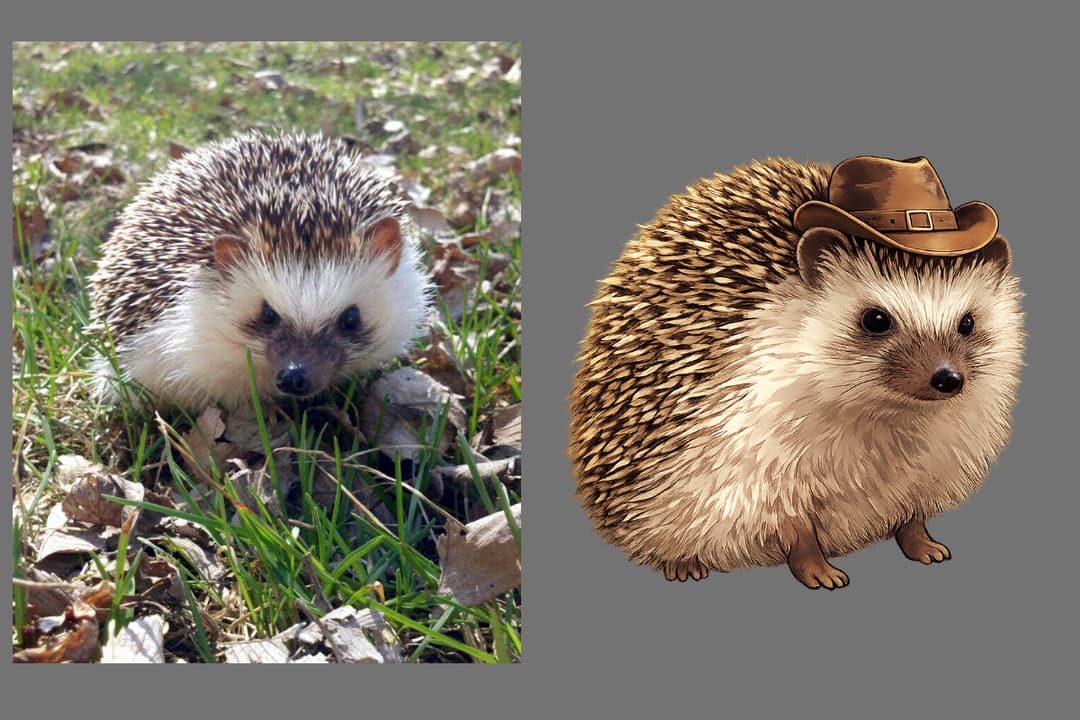
How to use Reference Image (step-by-step)
-
Set up your asset Go through the usual workflow (category → type → genre → art style → palette → perspective).
-
Add your reference On the final step before Generate, click Upload reference image and select your PNG/JPG (≤ 5 MB).
-
Write a focused prompt Describe what to generate while keeping the subject identity. Keep it short and specific.
-
Choose quality
- Medium (2 credits) for quick results and iteration.
- High Quality (5 credits) for maximum surface fidelity (not available on trial).
-
Generate & review Check that the subject identity and style look right. If you need a nudge, refine the prompt and generate again.
Prompt examples
Photo → character “Use this subject as the character. Keep proportions and key markings. Centered, same framing.”
Pet → companion “Use this dog as the companion; add a small collar tag and have him be sitting down. Preserve coat pattern and silhouette.”
Tool → icon “Use this wrench as the icon. Crisp outline and strong negative space. No text or extra elements.”
Best practices
- Keep the subject large and readable. Tiny subjects are harder to preserve.
- Say what to preserve. Call out “keep identity, proportions, and key markings.”
- Keep the prompt concise. Style is taken from your workflow; you don’t need to restate everything.
- Iterate in small steps. If it’s close, adjust a little rather than rewriting the whole idea.
- Be realistic about text. Exact typography or pixel-perfect symbols aren’t guaranteed.
Common limitations
- Busy backgrounds can distract from the subject (consider uploading a clearer shot).
- Major pose changes from a single reference may drift—ask for small adjustments per attempt.
FAQ
Do you store my reference images? No. We process uploads transiently to generate your asset and do not retain them.
Will the result match my exact subject? The feature aims to preserve identity and key markings while applying your chosen style. Clear subjects produce the best results.
Can I mix styles at this step? The output follows the style chosen in your workflow. Keep prompts focused on content rather than changing styles.
Why did the background change? Without masking, prompts can influence both subject and background. Be explicit: “keep subject, change background to X.”
Next steps
Ready to try it with your own image?